So, what are third-party cookies, you ask? Well, they're basically like the nosy neighbors of the internet - they show up uninvited, and start snooping around, trying to figure out what you're up to. But in all seriousness, third-party cookies are small pieces of code that websites use to track your browsing habits and personalize your experience. They can be helpful, but also a bit creepy, if you know what I mean.
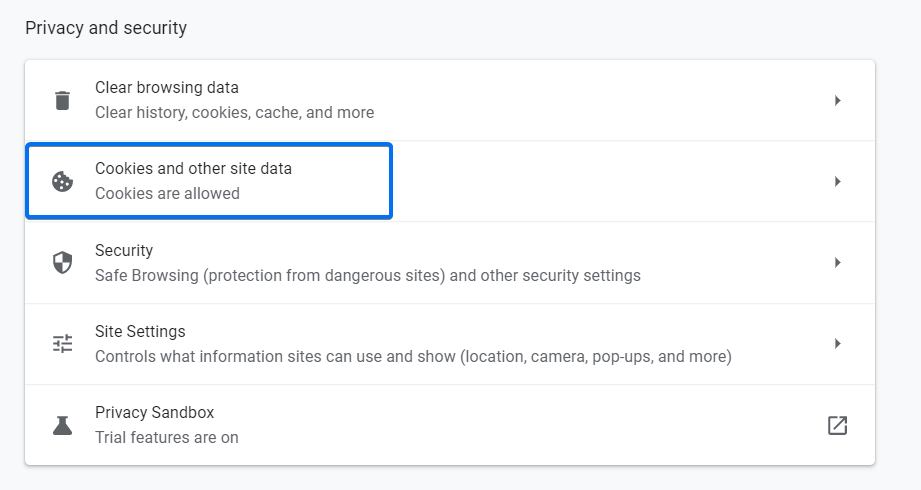
Now, to enable third-party cookies in Chrome, you'll need to head to the Settings menu (yeah, it's like a treasure hunt, but less exciting). You can do this by typing chrome://settings/ into the address bar, or by clicking on the three little dots in the top right corner of the browser window. From there, click on Advanced, then Site Settings, and finally Cookies and other site data.
Once you're there, you'll see a bunch of options that might look like gibberish to the average person (don't worry, we won't judge you). Look for the Allow option next to Third-party cookies, and make sure it's turned on (if it's not already). You might also see some other options, like Block third-party cookies or Clear on exit - but we won't get into those cookie complexities just yet.

