Imagine you’re presenting a vacation plan. Instead of droning through each hotel option, you create a slide titled “Beach or Mountains?” The audience clicks a button—and whoosh—they see the beach itinerary or the mountain lodge. They choose their own path. You’re not just talking at them; you’re playing a game with them.
Even better: use hyperlinks for secret Easter eggs. Hide a weird fact about penguins on slide 12. Add a link that plays a retro video game sound. Your audience will feel like detectives solving a puzzle—and they’ll remember your message because you made them laugh.
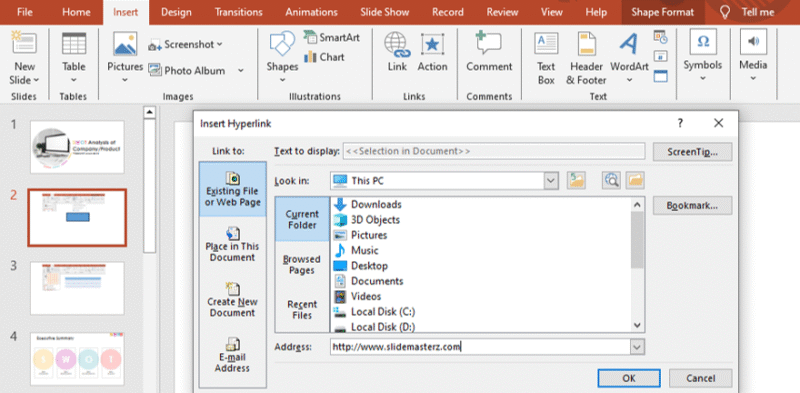 Adding Hyperlinks in PowerPoint: A Beginner’s Step-by-Step Guide
The Secret Sauce: Why It Works
Humans love surprises. A hyperlink is a little dopamine hit—a promise that something cool is just a click away. It breaks the monotony of a linear presentation and wakes up sleepy brains. Plus, it makes you look like a tech wizard, even if you’re just clicking the same button your grandma uses to open an email.
Don’t overthink it. Start small: hyperlink a single word to a funny YouTube clip. Then add a second link to a secret “blooper slide.” Before you know it, your deck becomes a living, breathing thing that responds to your audience’s curiosity. You are the puppet master. Embrace it.
Yes, there’s a tiny catch: you need to test your links before showtime. Nothing kills the vibe like clicking a dead link in front of a live audience—cue the sad trombone sound. But a quick run-through, and you’re golden.
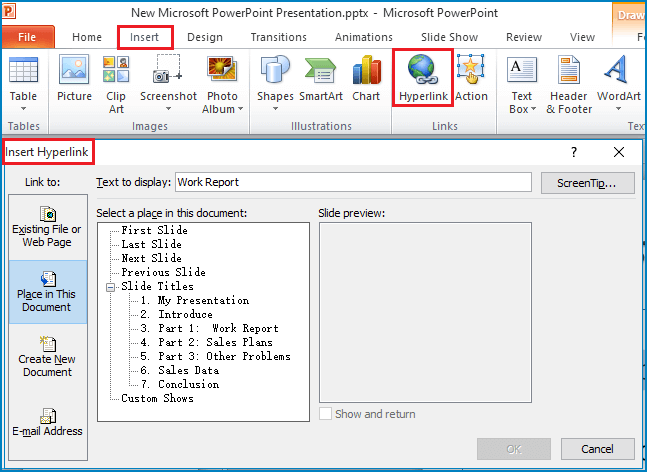 5 Options to Add Hyperlinks to PowerPoint Presentation Slides