I remember my uncle Bob telling me he “moved his photos to the Cloud.” I pictured a giant, rain-soaked filing cabinet floating over his house. Spoiler alert: It’s not that. It’s basically just using someone else’s computer that’s always on and plugged in, so you don’t have to worry about your own machine dying.
Think of it like this: remember when you had to store your winter sweaters in a giant storage unit? The Cloud is that storage unit, but without the creepy spider webs and the monthly fee of weird cash-only payments. You pay for space, not for the spider removal service.
Step One: Stop Hoarding Everything Locally
The first step is admitting you have a problem. If your desktop looks like a digital yard sale of random PDFs and blurry vacation photos from 2014, it’s time to let go. All of it. You don’t need to keep that scanned receipt for a toaster you bought in 2017.
Your laptop’s hard drive is like your junk drawer at home. It’s full of dead batteries, old keys, and a single chopstick. The Cloud is the magical drawer that exists everywhere and nowhere—and it never gets stuck when you try to close it.
Step Two: Pick Your “Cloud Provider” (It’s Like Choosing a Coffee Shop)
Now you have to choose where to put your stuff. You’ve got Google Drive, Dropbox, iCloud, OneDrive—they’re all just different coffee shops. Google is the busy, hipster place where everything is connected. iCloud is the one where you have to buy the house coffee (an iPhone) to get the best table.
Dropbox? That’s the cozy, reliable corner café that has been there forever, but it charges you extra if you want to add whipped cream (terabytes). Pick one. Don’t try to use all four, or you’ll end up with a digital version of that time you tried to carry four cups of coffee and lost two of them.
 Cómo obtener iCloud en iPhone, iPad, Mac o PC con Windows - Mundo Geek
Step Three: Drag, Drop, and Pray
Here comes the actual magic. You open the folder on your computer, grab your files, and literally drag them into the Cloud folder. That’s it. It’s less complicated than assembling IKEA furniture, and you don’t end up with a strange extra screw you can’t identify.
I once watched a friend try to “upload” a file by physically holding his phone up to the ceiling fan. Don’t be that guy. Just drag it. The files will start a tiny spaceship journey through the invisible internet cables under the ocean. They’ll be fine.
Step Four: The “Oh No, Wait, It’s Back” Moment
The first time you delete a local file and panic, you will feel a moment of genuine grief. You’ll scream, “I lost the spreadsheet with my secret chili recipe!” But then the Cloud says, “Chill, bro, I got you.” You log into the website, and bam—there it is.
That feeling is better than finding a twenty-dollar bill in a winter coat you haven’t worn since March. It’s the digital equivalent of saying “I’ll have the leftovers for lunch” and realizing they’re still good. The Cloud is basically a safety net for your digital forgetfulness.
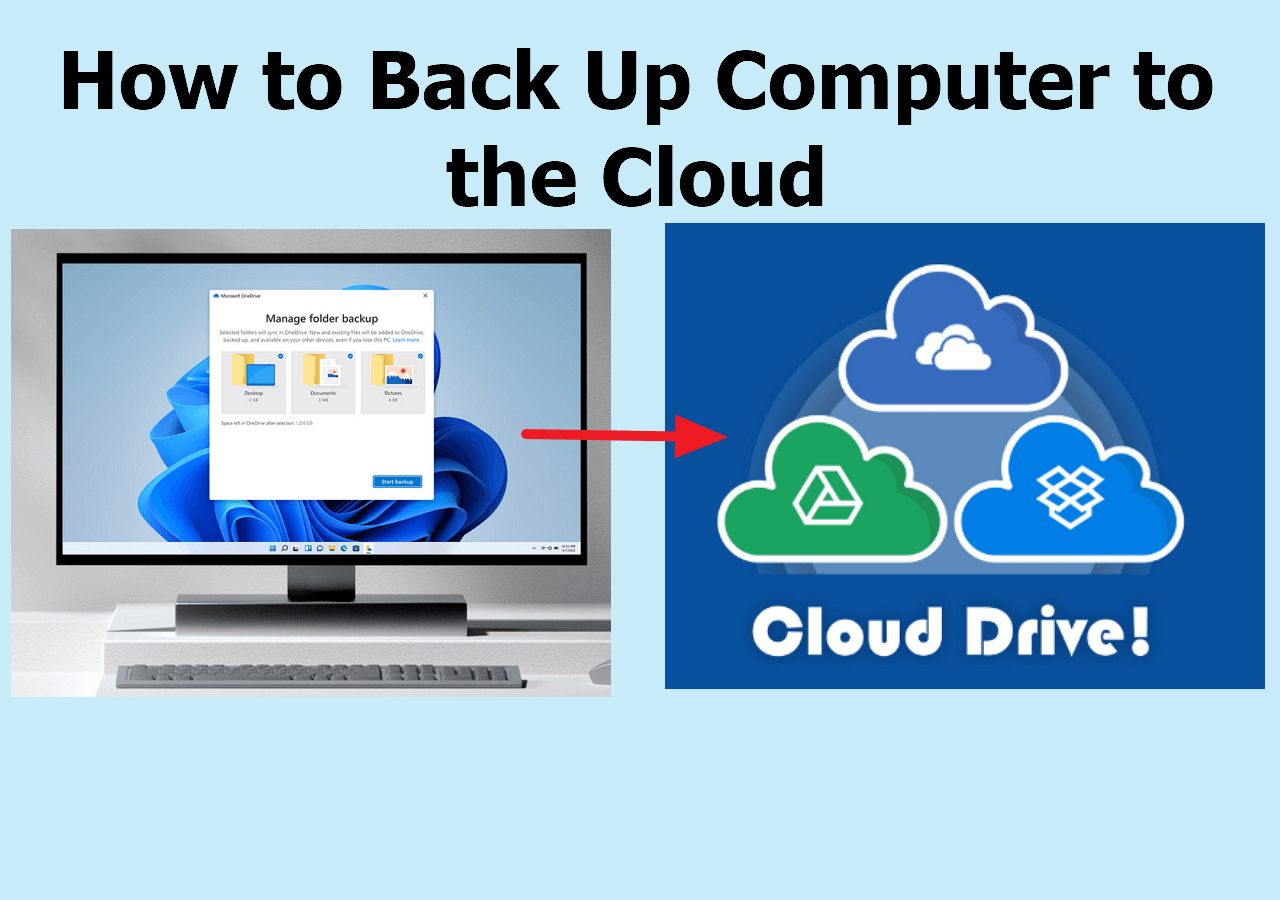 How to Back Up Computer to the Cloud (4 Methods) - EaseUS