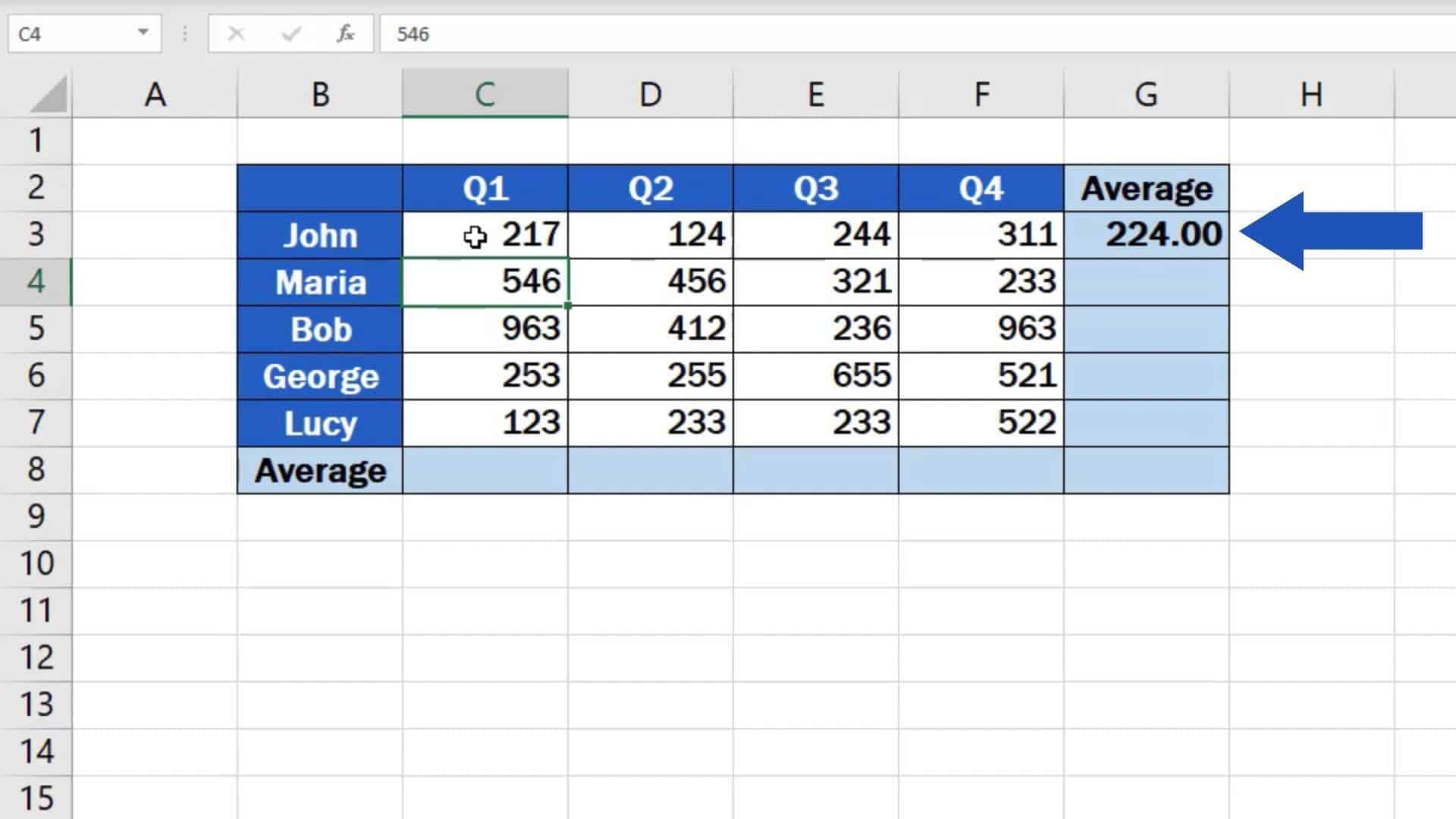
The absolute easiest way to find an average in Excel is by using the AutoSum button. It’s like the lazy genius of the spreadsheet world.
Click on an empty cell right below (or to the side of) your list of numbers. Then, look for the Home tab at the top and find the button that says AutoSum—it looks like a Greek letter E (Σ). Click the little arrow next to it, and select Average.
Excel will magically guess which numbers you want to average. Hit Enter, and boom—your result appears. No sweat, no equations, no friend asking you for math help at 2 AM.
The Quick Fix: Status Bar Check
Wait, what if you just need a quick peek at the average without even typing anything? Excel has your back here too.
Simply highlight all the numbers you’re curious about. Then, glance down at the bottom-right corner of your Excel window—that’s the status bar. You’ll see the Average, Count, and Sum pop up automatically.
It’s like Excel is reading your mind, but without the creepy sci-fi vibes. Try it next time you’re comparing avocado prices. Who knew grocery math could be this painless?

