When someone sends you a file via AirDrop, your Mac will pop up a notification that says "Accept" or "Decline." Here's the rule: if you're expecting a photo of a puppy, Accept immediately. If it's from a stranger named "Tim's iPad," probably Decline—unless you're feeling adventurous and want a mystery file (spoiler: it's usually just a meme).
The file lands in your Downloads folder by default, because Apple assumes you're organized. If you're not, it's like finding a sock in a dryer—unexpected but harmless. For iPhones sending to Macs, make sure both devices are on the same Apple ID or are in each other's contacts, or else AirDrop will ask for confirmation like a bouncer at a club.
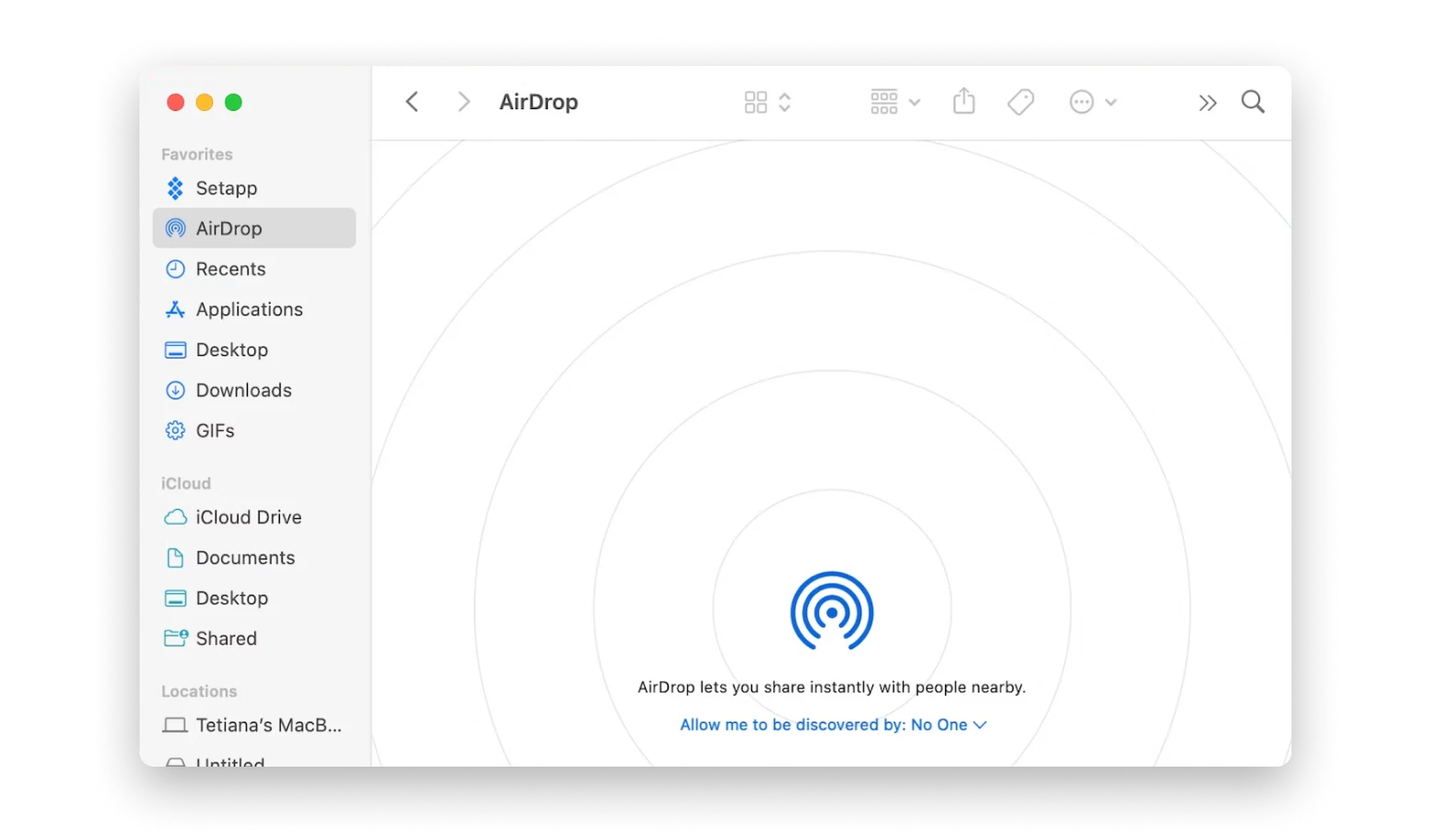 How to Turn On and Use AirDrop On Mac – Setapp
The Ultimate Test: Sending a File
Let's do a dry run. Open a photo in Preview, click the Share button (that little square with an arrow), and choose AirDrop. Your Mac will scan the room like a periscope—if another device is nearby, it'll appear as an icon. Click it, and your file will zip across the ether in seconds. I once sent a 4K video in less time than it takes to microwave popcorn.
If the file disappears into the void, check your firewall. Go to System Settings > Network > Firewall and make sure it's not blocking incoming connections. Apple's firewall is like a paranoid bodyguard—it'll block AirDrop unless you tell it to chill out.