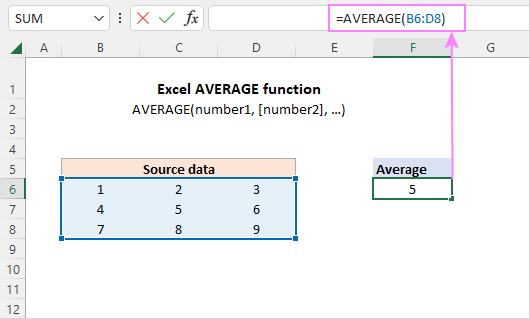
Sometimes life isn’t fair. Your final grade might be 60% from exams and 40% from homework. A simple average won’t cut it—you need a weighted average. Excel has you covered, but it requires a tiny bit of bravery.
Use the SUMPRODUCT function. Picture it: =SUMPRODUCT(First set of numbers, Second set of numbers) / SUM(Weights). It sounds like a spell from a fantasy movie, but it’s just math with a cape on.
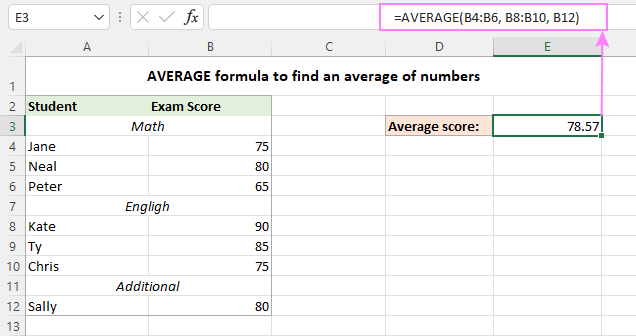 Simple Average Formula
For example, if your exam scores are in column A and your homework scores are in column B, and the weights are 0.6 and 0.4, you’re basically telling Excel, “Give me the truth, even if it hurts.” And it will, because math is cold like that.
Don’t Forget the AutoSum Button
Look at the Home tab on the ribbon. You’ll see a button with a Greek letter that looks like a funky E. That’s the AutoSum button. Click the little arrow next to it, and voilà—choose Average.
AutoSum is the lazy person’s dream. It guesses which numbers you want, so you barely have to think. It’s like having a GPS that says, “You’re already here, stop asking for directions.” I use it more than I care to admit.
And if AutoSum guesses wrong? Just drag the blue box to fix the range. No shame. Even Excel gets confused sometimes.

